Copying files
Once connected, the left pane shows this computer and the right pane the server. Copying to the server is an upload; copying from it, a download.
Finding your files
- Double-click a folder to open it; double-click .. to go back up. The folder you came from stays selected.
- The drop-down above each pane switches disks: this computer's, or the server's drives and main folders.
- On this computer, double-clicking a file opens it with its usual program.
- Right-click for New Folder…, Rename… (F2), Delete (Delete) and Refresh.
Uploading and downloading
Either way works:
- Drag files or folders from one pane and drop them on the other (or on a folder in it). A small menu asks Copy Here or Move Here. Moving deletes the originals once they are copied.
- Right-click them and choose Upload or Download (or Move to…). They go to the folder the other pane shows.
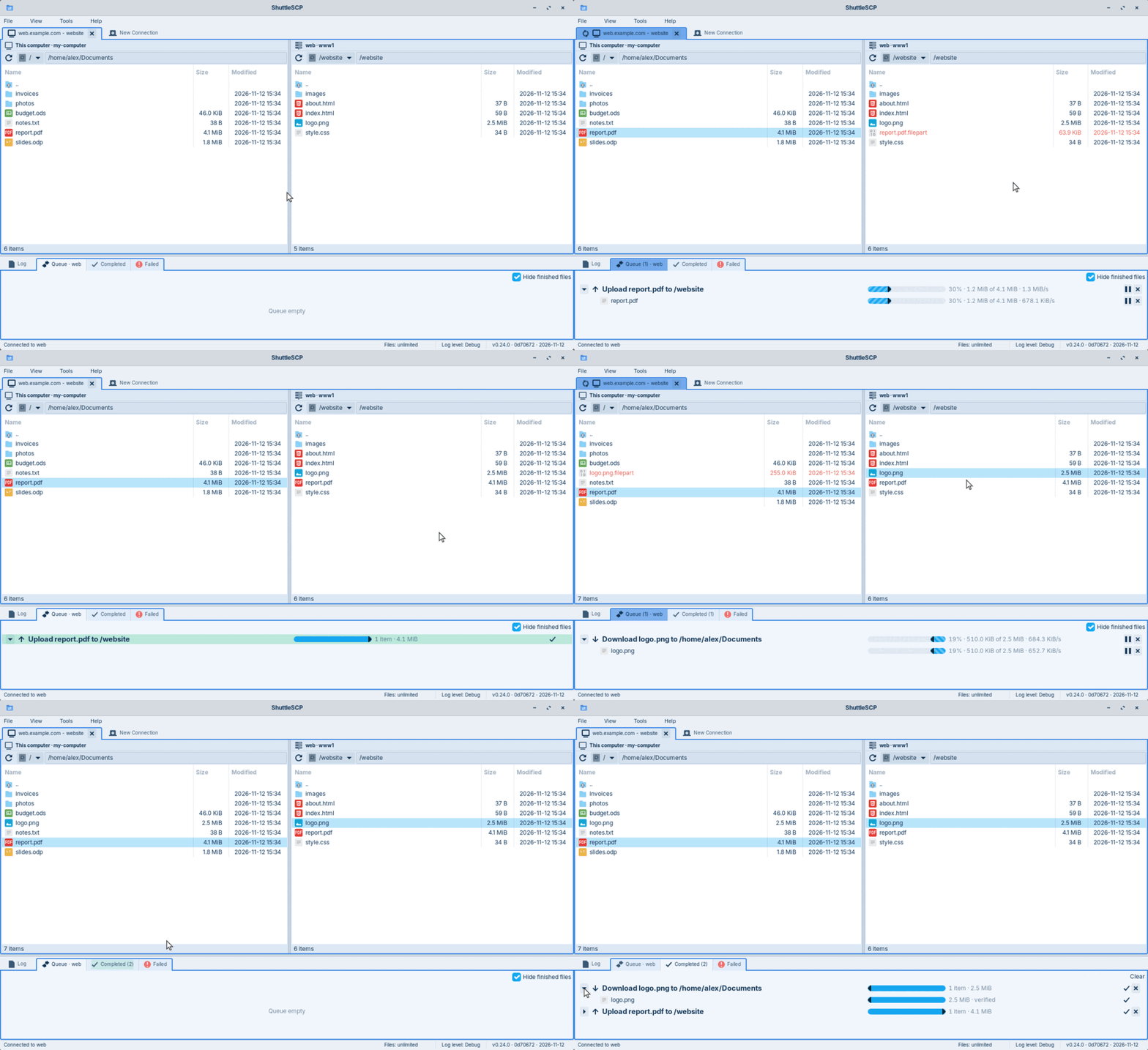
While a file is copied it is called name.filepart; it gets its real name once
complete, so a half-copied file is never mistaken for a finished one.
When a file is already there
ShuttleSCP asks before replacing anything: File Already Exists shows both files' sizes and dates (the newer one is marked). Choose Skip, Overwrite or Cancel Transfer; tick Do the same for the other existing files to answer once for all of them.
Watching and controlling transfers
The Transfers area at the bottom has three tabs: Queue (running and waiting), Completed and Failed. Each transfer shows its files, progress and speed. The buttons on its line:
| Button | On a transfer | On one file |
|---|---|---|
| Pause | Stops for now, keeping what is copied | Pauses that file; the rest goes on |
| Resume | Continues where it was paused | Continues that file |
| Cancel / Stop | Cancels the whole transfer | Leaves that file out; the rest goes on |
| Retry | Runs a failed transfer again, continuing where it stopped |
Hide finished files keeps the files still being copied at the top of a long transfer.
Interruptions
- If the connection drops, ShuttleSCP logs in again by itself and continues the file from where it stopped (up to three times).
- If ShuttleSCP is closed during a transfer, or the computer restarts, the partial copies are kept. The next time you log in to that site, a banner offers to Resume them; the Login dialog's Unfinished tab lists them too.
How many files at once
The status bar shows how many files are being copied, like Files: 2 of 4. Click it to set a limit over all your connections, or Unlimited. With a limit, the other files wait their turn, the oldest transfer first. Lowering the limit pauses the files started last; they continue from their partial copies when there is room.
To jump the queue, right-click a transfer that has files waiting and choose Start now. Each site also has its own Files at once (under Advanced in the Login dialog), for servers that refuse many connections.
Checking copies
After each file is copied, ShuttleSCP checks that the copy is identical to the original,
by comparing their checksums: a long number computed from a file's contents, which
changes completely if a single byte differs. The server computes its side itself when it
can (with sha256sum over SSH, or FTP's HASH command).
- A file's line then says verified (its checksum is in the tooltip), or not verified with the reason.
- If the copy differs, the file counts as failed, and a move keeps its original.
- When a server cannot compute checksums, ShuttleSCP reads the copy back to check it, up to a size you choose; larger files show not verified (large file), with a button to check them anyway.
Turn it off, or change the size, in File › Preferences… (Verify file checksums after completion). For a slow server, choose Server checksums only under the site's Advanced: nothing is then read back.