Copying between two servers
Sometimes the files are on one server and need to go to another: from a web host to a backup server, from an old machine to a new one. A site-to-site session shows one server in each pane, so you can copy between them directly, without downloading everything first and uploading it again.
Opening a site-to-site session
- Save both servers as sites first (see Adding a site), with their passwords saved or SSH keys set up: the session logs in to both at once, without asking.
- In the Login dialog, open the Site to site tab.
- Pick a site for the left pane and one for the right pane, then click Login.
The status bar then says Connected to both servers, and each pane's title names its server.
Copying
Exactly as between this computer and a server: drag files from one pane to the other and choose Copy Here or Move Here, or right-click them and choose Copy to the other server. Each transfer's line shows which way it goes, like Copy images: web.example.com → backup.example.com.
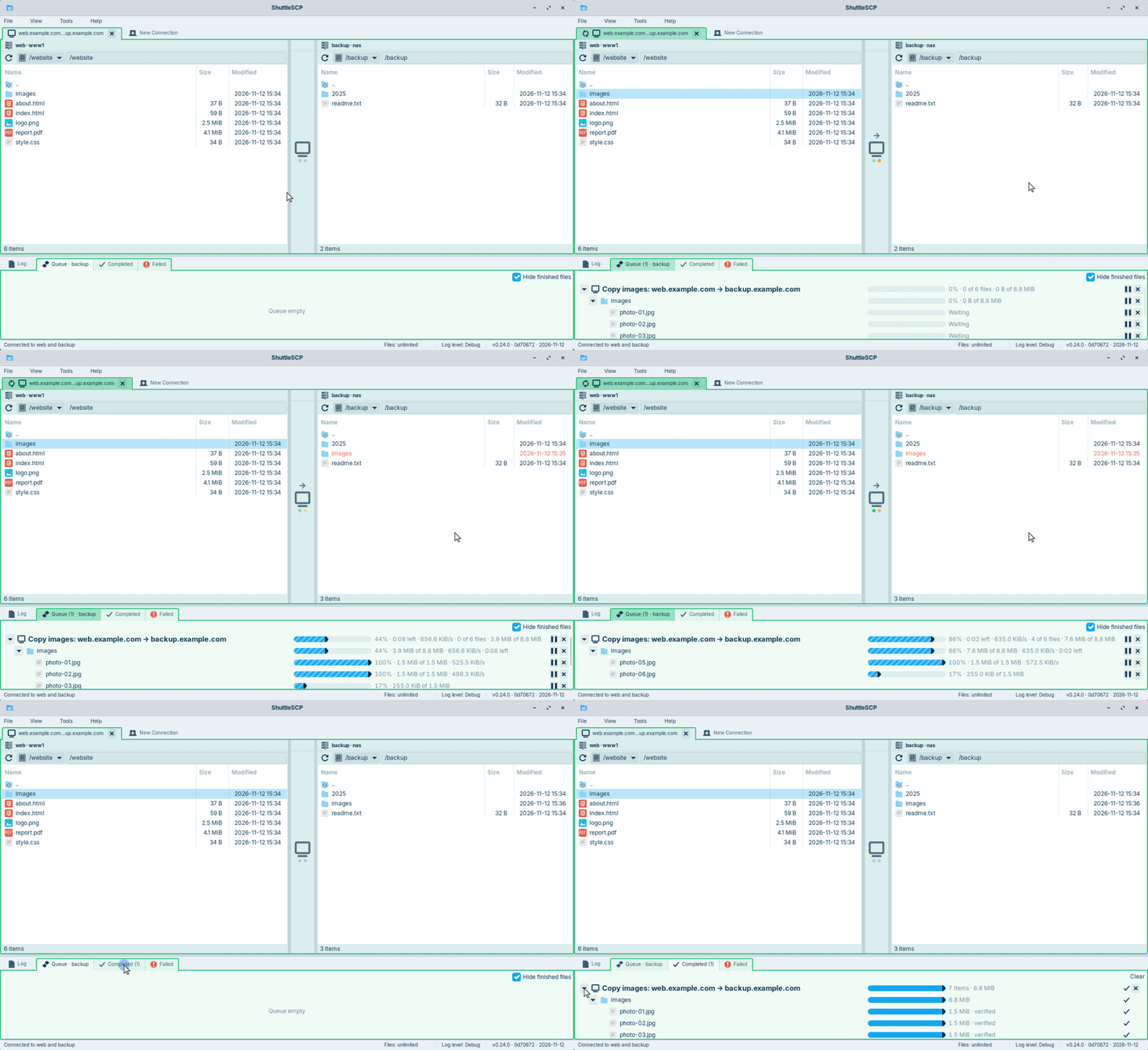
How it works
The two servers do not talk to each other: often they could not (firewalls, different
logins, different protocols). Instead, the data flows through your computer:
ShuttleSCP reads from one server and writes to the other at the same time, without storing
the files on your disk. It is what the command scp -3 does, and it works between
any two kinds of server, even SFTP on one side and FTP on the other.
Because the data passes through your computer, the speed is limited by your own internet connection: both the server's download and the other server's upload use it. For very large copies between two servers in the same data centre, copying on one of the servers directly can be much faster.
Everything else works as usual: pausing and resuming, the transfer limit, and checking copies, where each server computes the checksum of its own file.